
The window
The window shows your sessions on the board, the one in focus in a panel beside it, and the views of that session from the buttons at its right edge.
Sessions and the board are in Sessions and the board.
The header
Section titled “The header”Across the top of the window, after the Moontors name, with your plan beside it once you’re signed in to your Moontors account (see Your Moontors account), from left to right:
- Create session (see Creating a session).
- Add project, the folder with a plus, then a button for each project you’ve added, in your order, scrolling sideways when they don’t all fit (see Projects).
- A tag for each state your sessions are in that you act on or watch, with how many are in it, as
their cards show it: running (a turn under way, or idle with its background tasks or
subagents still running, which its card counts beside Idle), waiting (for your answer to a
question, a plan or a permission), action denied and error. Each counts sessions, not
what they run: three sessions running are 3 running, however many tasks each has. A session
waiting for you is waiting, whatever else it runs, and one with an action denied is counted
under both its tags. The tags count the open sessions of every project, not the archived ones,
and change as the sessions do; a tag shows only while a session is in its state.
- Click a tag to focus the next session in that state, as clicking its card does, and bring its card into sight: the first click the first on the board, then the next, and round to the first again. Each tag remembers where it got to, and carries on from there as sessions come and go.
- As the window narrows, the projects scroll sideways first, keeping the first project whole; then the tags give way, and scroll sideways too; then the usage rings by Profile, the least used first, leaving only whole rings.
- At the right end, four icons, each naming itself when you point at it:
- Archived, the box, which shows the archived sessions in the board’s place, and stays lit while they show (see Archiving and deleting);
- Phones, the phone, which pairs a phone with this computer and lists the phones paired with it (see The phone);
- Settings, the sliders, which shows the app’s settings in the board’s place, and stays lit while they show (see Settings);
- Profile, the person, over the buttons at the right edge, which shows Profile in the board’s place, on your agents’ sign-ins, Providers, and stays lit while it shows (see Signing in).
- In a window too narrow for the board and a session side by side, what Archived, Settings and Profile show comes in front of the session, which comes back once you close it.
- After the person, inside the same button, a ring for each usage limit at 75% or more (see
Context, usage and limits), the
most used first. Each limit has its own ring, as Claude Code’s 5h window and its weekly limit
do: amber from 75% and red from 90%, filled to how much is used, with the percentage inside. Pointing at a ring shows the agent, the account, the window, how much is used, when it
resets and how long ago Moontors heard it; pointing at the person names Profile. A click
anywhere on the button opens Profile.
- A ring stays until its window resets, or until a newer figure is under 75%. One Moontors heard a while ago still shows, as usage only grows until its window resets. A newer figure changes the ring in place, and a ring slides in as it comes and out as it goes, or at once if your system asks for less motion.
- Moontors reads the figures as the window opens, and hears them from every session of the agent as it works. While the window is in front, it reads them again once they’re 15 minutes old and no session of that agent is working: as soon as the window comes to the front, then every 15 minutes while it stays there. It reads nothing while the window is in the background.
Under the header, a notice shows when there’s something to say about the app itself: an update (see Updates), or a one-time note about your system. After an archive, a note there also names a worktree folder that was left for you to delete, until you choose Dismiss (see Worktrees).
The layout
Section titled “The layout”From left to right: the board, the transcript panel, and a column of buttons at the window’s right edge.
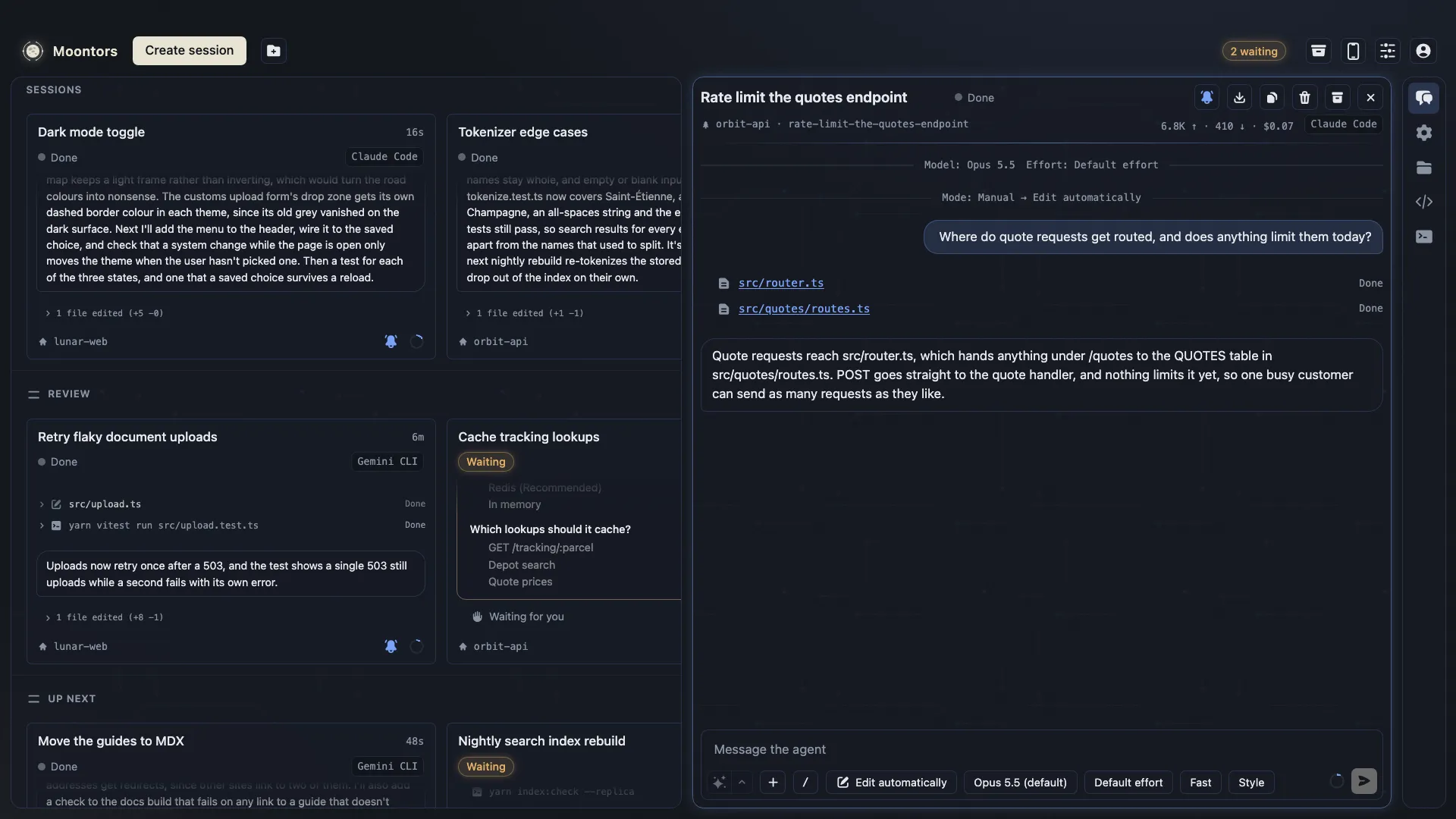
- The buttons at the right edge open the views of the session in focus: Transcript, Configuration, Files, Git, Terminal and, once the session has a plan, Plan. Transcript opens and closes the panel. Configuration opens the Configuration dialog (see Configuration). Files and Git open over the board and the panel (see Git and Files), and so do Terminal (see The terminal) and Plan (see Questions and plans). A dot on Plan marks a plan that waits for you, until you’ve seen it.
- With a project in focus (see Projects), Files, Git and Terminal work on the project’s folder, with no session; Transcript and Configuration are dimmed, their tooltips saying a project’s folder is in focus and to open a session for them, and there’s no Plan.
- With no session or project in focus, the buttons are dimmed, and their tooltips say to open a session first. Right after an update, Files, Git and Terminal wait until the new version’s background service has taken over, and their tooltips say so.
- The Up and Down arrow keys move between the buttons, round the ends, and Home and End go to the first and last.
- Each session keeps its open view, its open files and where the focus was while the window is open, so switching back finds them as you left them; Git and Terminal keep theirs by the session’s working folder, which every session working there shares (see The terminal). Across a restart, each session’s Files, the Git view and the terminals’ tabs are kept, the tabs coming back as fresh shells, though no view is open until you open one, and where the focus was in it starts afresh. Each project keeps its own open view in the same way. Closing a view closes it for every session and project, so switching to another opens none until you open one there, and each view keeps what was in it for when it’s opened again. Focusing a project while Files, Git or Terminal is open keeps that view open, now on the project, whichever session or project you came from; with none open, it opens the view the project had last, even if you closed it since, and Files the first time.
- When a folder’s last session is archived or deleted, the folder keeps its Git view, its terminal tabs and that session’s Files for the next session started there, for the 20 folders left most recently, across a restart too (see Git, The editor and Tabs). A folder a project you added holds keeps more: its shells go on running, and its tabs, its Git view and that session’s Files stay with the project, which you focus to reach them, unless the project’s own Files hold unsaved changes; the shells end when you remove the project.
- Drag the gap between the board and the panel to resize the panel; it lights up once the pointer rests on it. Double-click it to restore the default width. Drag it past the panel’s minimum, where the panel blurs, and let go to close it; it opens again at the default width. With the keyboard, the Left and Right arrow keys move it.
- In a narrow window, Moontors shows one at a time: the board, or the open session’s transcript.
- Moontors draws no scrollbars: not on the board, the transcript, a list or a text field, the editors or the terminal. Everything still scrolls, with the wheel, the trackpad or the keyboard. The one exception is the Git view’s lists of files, a commit’s and the working changes’: each shows a scrollbar all the while it has more files than fit (see Git).
- The panel’s width, whether it’s open, and the open session are kept when you restart; a focused project isn’t, so Moontors opens on the board with nothing in focus.