
Sessions and the board
A session is one agent working in one folder. Moontors runs every session in the background, so closing the window doesn’t stop them. Reopen Moontors and they’re still there.
Creating a session
Section titled “Creating a session”Choose Create session, then:
- Folder: the folder the agent works in, from Choose folder…;
- Title, optional, up to 120 characters. Without one, the session is named by the first line of your first prompt that isn’t a command;
- in a git repository, whether to Run in a new worktree (see Worktrees);
- Provider: Claude Code, Codex or Gemini CLI. Each shows whether you’re signed in to it. One that isn’t installed yet says so, and picking it installs it; if that fails, choose Retry;
- the model, and its effort where the model has a choice. Both start at the agent’s default.
Create installs the agent first if it isn’t installed yet, and asks you to sign in if you’re signed out (see Signing in). Then write your first prompt.
The header
Section titled “The header”Across the top of the window, from left to right:
- Create session (see Creating a session).
- The Project menu, once you’ve run sessions in a folder: it filters the board to one project, or shows All projects. With a project picked, Edit project, the pencil beside it, edits it (see The board).
- Archived, which shows the archived sessions in the board’s place (see Archiving and deleting).
- Phones, which pairs a phone with this computer and lists the phones paired with it (see The phone).
- Accounts, the person icon at the right end, which opens the Accounts dialog (see Signing in).
Under the header, a notice shows when there’s something to say about the app itself: an update (see Updates), or a one-time note about your system.
The board
Section titled “The board”The board shows every session as a card. Cards sit in rows, called sections, and each row scrolls sideways.
- The top row, Sessions, holds sessions that aren’t in a section. A new session lands first there.
- New section, below the rows, adds a section named “New section”, its name open for editing.
- A section’s pencil renames it: Enter saves, Escape cancels, and an empty name changes nothing. A name holds up to 80 characters.
- A section’s trash icon removes it at once, with no confirmation, and its sessions go back to the top row.
- An empty row says “Drag sessions here.”
- Drag a card to move it, within a row or to another one, and drag a row by its handle to reorder the rows. With the keyboard: Space picks it up, the arrow keys move it, Space drops it, and Escape puts it back. On a card, Enter opens the session.
- The order is kept when Moontors restarts.
- Filter the board by project from the Project menu. A project is a folder you’ve run sessions in. The filter isn’t kept: it’s back to All projects when Moontors restarts.
- With a project picked, Edit project, the pencil beside the Project menu, renames it (up to 80 characters), sets the files copied into its new worktrees (see Worktrees), or removes it with Remove project. A project can’t be removed while it has sessions that aren’t archived.
A card
Section titled “A card”Each card follows its session live, so you can watch every session without opening one:
- the header: the title, the status and how long it’s been in it (for a running session, how long the turn has run), and the agent and model;
- the bottom of the session’s transcript, as it streams, a little smaller than in the panel. It’s read only; hover over a turn to see when it ran;
- the footer: the repository and branch for a worktree session, or else the folder’s name; how many background tasks are running, if any; and a small ring showing how full the agent’s context is (see Insight and code workflows).
Click a card anywhere to open it. Its status is one of Idle, Running, Waiting (for you), Stopped (the turn was cut off) or Error (the agent can’t go on until you act, for example by signing in).
The transcript
Section titled “The transcript”Opening a card shows its transcript in a panel beside the board. It shows your messages, the agent’s replies as Markdown, its thinking (collapsed), each tool it runs with its output or the lines it changed, its questions, and quiet rows for status changes, errors and notes.
The panel’s header
Section titled “The panel’s header”The header shows the title and the status, with buttons for Export the transcript, Fork, Delete, Archive and Close the transcript. A button shows only where the session’s agent can do it: Gemini CLI has no Fork. Under them are the agent, the folder (hover over it for its full path), and the tokens used with the cost where there is one (see Insight and code workflows).
- Rename session: the pencil beside the title opens it for editing. Enter saves and Escape
cancels. A title holds up to 120 characters.
/renamewith a title renames the session; alone, it opens the title for editing. - Fork starts a new session from the conversation as it stands now, in the same folder. Its transcript holds the original’s conversation, then a row where the fork began, naming the session it was forked from. Its card lands first in the board’s top row. A worktree session’s fork shares its worktree. If the original conversation was compacted after the fork, the fork says so and asks you to fork it again. Gemini CLI can’t fork.
- With Claude Code, the branch action beside one of your prompts starts a new session from before
that prompt, and this one stays as it is (see
/branchin Conversation commands). /cdmoves a session to another folder, and the agent carries on with the same conversation there; the transcript says “Moved to” the new folder./cdworks with Claude Code and Codex. What it can’t move, and when, is under/cdin Conversation commands.
What the transcript shows
Section titled “What the transcript shows”- Your messages, with the files you sent as chips (see Attaching files). Hovering over a message, or moving the focus to it, shows its actions, such as branching and rewinding, where the agent offers them; one that can’t be used now is dimmed, with the reason in its tooltip.
- The agent’s replies, as Markdown: headings, lists, tables, and code coloured as Files colours it. Raw HTML isn’t drawn, an image shows as its description, and only https links open, in your browser.
- Thinking, collapsed.
- Tools: each tool the agent runs, with an icon for its kind, its status (Pending, Running, Done or Failed), the files it touched, and its output or the lines it changed in a panel that scrolls past a set height. A subagent’s call shows the model and effort it ran at.
- Subagents: when the agent hands work to subagents of its own, as Codex can, each subagent’s work shows as one collapsed row where it began, saying whether it finished, failed or was stopped, and the model and effort it ran at where the agent says. Open it to see the subagent’s own replies, thinking and tools. Claude Code’s Agent tool shows the model and effort it asked for on its card.
- Permissions, questions and plans, which wait for your answer (see Permission modes and Questions and plans).
- Quiet rows for what happened to the session:
- a change into or out of waiting, such as Running → Waiting for you;
- Stopped, with why when it wasn’t you: “Stopped: the agent crashed”, “Stopped: the daemon stopped mid-turn” or “Stopped: signed out”;
- a change of model or effort, and of permission mode;
- “Context cleared”, a rewind, “Compacting the conversation…” then “Conversation compacted” (or “Compaction didn’t finish”);
- goals and loops, and the turns they start;
- errors, some with Sign in (see Signing in);
- notes from the agent or from Moontors, such as “The agent stopped: its reply reached the length limit.”, “The agent stopped: it reached its step limit for one turn.”, “The agent declined to continue.”, “The agent’s saved conversation was gone, so it started a new one.”, or “The agent warns:” followed by the agent’s own words.
- Unrecognized events: what the agent sent that Moontors doesn’t know shows as a count of unrecognized events; open it to see what was sent.
A turn’s footer
Section titled “A turn’s footer”A turn that finishes ends with a footer; a stopped or failed one ends with its Stopped or error row instead. The footer shows:
- the files the turn edited, with the lines added and removed;
- how long the turn took and when it ended, shown when you hover over the turn’s last reply or its footer, or move the focus there;
- Copy reply, on a turn with a reply: it copies the turn’s reply as the agent wrote it, without its tools, thinking or questions. Its icon turns to a check for a moment.
The composer
Section titled “The composer”Write in the composer at the bottom. Enter sends; Shift+Enter starts a new line.
- Its toolbar holds, from left to right: Attach files (see Attaching files),
Commands (
/, see Conversation commands), the permission mode (see Permission modes), the model with its effort where the agent has one, the agent’s own settings, the context ring, and Send. - With Claude Code the settings hold fast mode, the output style and when the agent compacts, and with Codex its Daybreak where your account has it (see Configuration).
- While a turn runs, Stop takes Send’s place and ends the turn in progress. A new message can’t be sent until the turn ends: nothing is queued. While only a plan waits for you, sending a message sets the plan aside (see Questions and plans).
- A message needs words: files alone can’t be sent.
- When a message can’t be sent, Send is held, and a line under the box says why.
- What you’ve written belongs to the session’s composer: opening another session lets it go, and quitting with a message being written asks first.
- Above the composer, the agent’s background tasks show while any run, each with its Output (“No output yet.” until there’s some) and Stop (see Configuration).
The model picker
Section titled “The model picker”The toolbar has two buttons side by side, each opening its menu: the model, and its effort where the model has a choice. Each menu starts with the agent’s own default, Default model and Default effort. While a turn runs, the picker says “The model can change once this turn ends.” A change shows in the transcript as a quiet row.
Attaching files
Section titled “Attaching files”Images, PDFs and text files go to the agent with a message, as each agent takes them.
Adding files
Section titled “Adding files”-
Attach files, the button left of
/in the composer, opens your system’s file picker, where you can pick several files at once. It shows only where the session’s agent takes files. -
You can also drag files from your computer anywhere onto the transcript. While they’re over it, it shows “Drop files to attach them”.
-
Or paste them into the message box with Cmd+V (Ctrl+V on Windows and Linux):
- An image on the clipboard, such as a screenshot or an image copied from a browser, attaches as
Pasted image 1.png, thenPasted image 2.png. - Files copied in Finder or Explorer attach under their own names.
- Text pastes as text, as it always has. When an app copies text together with a picture of it, as a spreadsheet does with its cells, the text is what pastes.
Like the button, pasting attaches only where the session’s agent takes files.
- An image on the clipboard, such as a screenshot or an image copied from a browser, attaches as
The files sit above the message as a row of chips, which scrolls sideways. Each chip shows a thumbnail for an image or an icon for any other file, the file’s name, and an image’s size. The X on a chip takes it off. The files belong to the message you’re writing: switching to another session lets them go.
A file the session’s agent can’t take has its chip outlined, with the reason in its tooltip and under the message box, and Send waits until you take it off.
Opening a file
Section titled “Opening a file”A chip opens its file in a preview over the transcript, with an X at its top right; Escape closes it too.
- An image shows as it is.
- A text or code file shows read only, in the editor the Files view has.
- Any other kind, a PDF included, shows its icon and name: “There’s no preview for this kind of file yet.”
- A file over 5 MB isn’t read for a preview: “This file is too large to preview.”
Once you send the message, the transcript keeps its chips under it, and each opens the same preview: Moontors keeps the files with the session.
What each agent takes
Section titled “What each agent takes”| Images | PDFs | Text and code files | |
|---|---|---|---|
| Claude Code | yes | yes | yes |
| Codex | yes | — | yes |
| Gemini CLI | yes | yes | yes |
- Images are PNG, JPEG, GIF and WebP.
- A text file is known by its extension, by a name such as
Dockerfile,Makefile,LICENSEorgo.mod, or as a dotfile such as.bashrcor.env.local. A file none of these names goes as text when its start holds no binary data. - With Claude Code, a file its service couldn’t read, or of a kind the model doesn’t read, gets a note in the transcript: the agent leaves it out of the conversation from then on.
Limits
Section titled “Limits”Moontors says why before anything is sent when:
- a file is over 5 MB;
- the session’s agent doesn’t take its kind;
- a message’s files together come to more than the agent takes in one request, counted as it sends them: 32 MB for Claude Code and 20 MB for Gemini CLI. An image or a PDF counts a third more than its size, as it goes encoded, though Claude Code shrinks a large image first;
- with Codex, the message’s words and text files together run past 1,048,576 characters, the most Codex takes in one message;
- with Gemini CLI, the message starts with
/or$, which Gemini CLI takes as its own command, leaving the files behind; - the message is a command the agent runs itself, such as
/reviewor/init, which takes no files. Moontors’ own commands, such as/compact, leave the files in the composer.
A message needs words: files alone can’t be sent. Send the files with a message of their own instead. More limits are in Known limits.
Archiving and deleting
Section titled “Archiving and deleting”- Archive removes a session from the board. It always asks first, naming any background tasks that will stop, any files whose unsaved edits will be lost, and any of the session’s terminals that will end, with what runs in each (see The terminal). Its agent stops, and a worktree session’s worktree is removed (see Worktrees). Deleting a session that isn’t archived yet names its terminals the same way.
- Archived, beside the Project menu, shows archived sessions in the board’s place, newest first, under the same project filter. Each shows its project, agent and when it was archived. From there, Read its transcript, Reopen it onto the board, or Delete it. While reading, Back to the list or Escape returns to the list. Right after an update, Reopen waits until the new version’s background service has taken over, and says so.
- Reopening puts the session back at the top of its section, or of the board if its section is gone. A worktree session’s worktree is made again from its branch, or taken as it is if another session still uses it. If the branch is gone, or its name now belongs to another branch, the session reopens in the same folder of your main checkout, without a worktree of its own, and says so. If anything else stops it, such as the branch being checked out in your main checkout, it stays archived and says why.
- Delete deletes a session from Moontors’ database, and overwrites the space it took there, so its text doesn’t linger in the file. Where the agent lets Moontors, the agent’s own copy of the conversation goes too. It asks first, saying whether the agent’s copy goes, and can’t be undone. What else may still hold the session, such as the backup from the latest update, is in the Privacy Policy. A session is archived before it’s deleted; if its worktree holds work, the archive asks about that first. If the agent then fails to delete its own copy, the session stays archived, and Delete from Moontors only removes the transcript and leaves the agent’s copy.
/archiveand/deletedo the same as the buttons.
The layout
Section titled “The layout”From left to right: the board, the transcript panel, and a column of buttons at the window’s right edge.
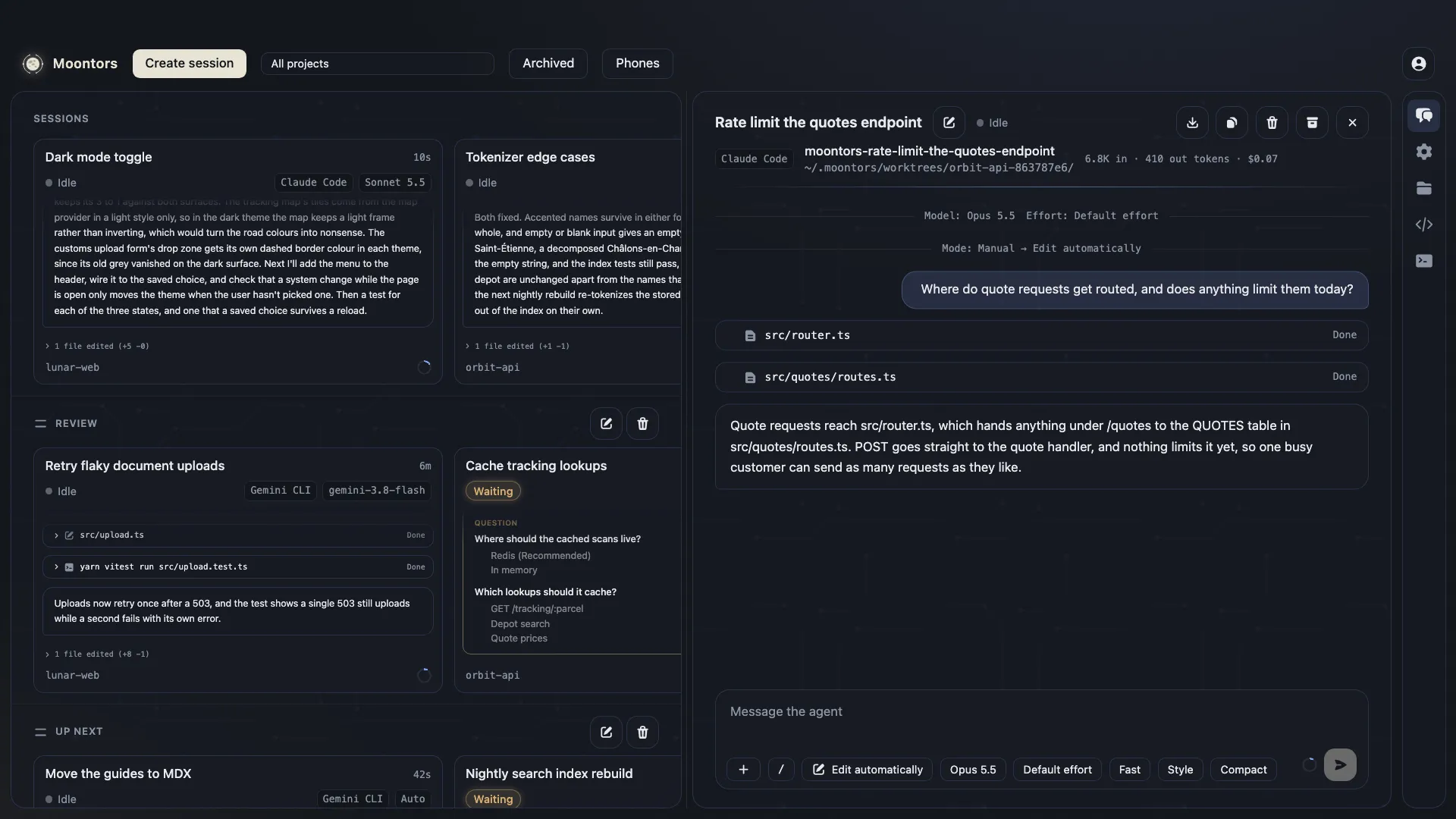
- The buttons at the right edge open the session’s views: Transcript, Configuration, Files, Git, Terminal and, once the session has a plan, Plan. Transcript opens and closes the panel. Configuration opens the Configuration dialog (see Configuration). Files and Git open over the board and the panel (see Git and Files), and so do Terminal (see The terminal) and Plan (see Questions and plans). A dot on Plan says “A plan waits for you” until you’ve seen it.
- With no session open, the buttons are dimmed, and their tooltips say to open a session first. Right after an update, Files, Git and Terminal wait until the new version’s background service has taken over, and their tooltips say so.
- The Up and Down arrow keys move between the buttons.
- Each session keeps its open view, its open files and where the focus was while the window is open, so switching back finds them as you left them. They aren’t kept across a restart.
- Drag the gap between the board and the panel to resize the panel; double-click it to restore the default width. Drag it past the panel’s minimum and let go to close the panel. With the keyboard, the Left and Right arrow keys move it.
- In a narrow window, Moontors shows one at a time: the board, or the open session’s transcript.
- The panel’s width, whether it’s open, and the open session are kept when you restart.
Notifications
Section titled “Notifications”Moontors notifies you when a session starts waiting for you, hits an error, or stops because the agent crashed, unless you’re already looking at that session. Clicking a notification opens the session.
On macOS, Moontors keeps running when you close its window, so notifications still arrive. On Windows and Linux, closing the window quits Moontors, and notifications stop until you open it again. The sessions keep working either way.
Updates
Section titled “Updates”When a new version is ready, a quiet notice offers Restart to update. To look at once, choose Check for Updates…, right after About in the Moontors menu on macOS, and in Help on Windows and Linux (see Menus and your data). It tells you if you have the newest version, or that it couldn’t look for or download updates. While an update downloads, the item reads Downloading Update… and can’t be chosen; once it’s downloaded it reads Restart to Update. Where Moontors can’t install its own updates, it reads Download Update… and opens the release’s page.
- If a file has unsaved changes, or a message is being written, it asks first.
- The update waits until the work under way ends, so nothing is cut off: running turns, background tasks, side questions, sign-ins, agent installs, and changes Moontors is making to a session, such as an archive or a rewind. The notice says what it’s waiting for, and Cancel stops the update.
- Running terminals don’t hold the update up: restarting ends them, and the notice says how many. An update you download and install yourself, as on macOS until its builds are signed, ends them too, and the notice says how many before you do.
- While it waits, Moontors starts nothing new: a prompt, a new session or another change is refused until the update installs, or you cancel it.
- Just before Moontors restarts, it asks again if anything new is unsaved.
- If the install fails, the notice says why, Moontors carries on as it was, and Try again is offered.
- If Moontors can’t look for updates or download one, the notice says why.
- Dismiss hides the notice until it has something new to say.
- Until Moontors’ macOS builds are signed, the notice offers the download instead.